Try Better Bookshelf free — catalog your first 50 books, no sign-up.


Bookshelf scanner
Scan a whole bookshelf in one photo. Then find any book on it.
Better Bookshelf is a bookshelf scanner app for iPhone and Android. Take one clear photo of a bookcase, and AI identifies the books from their spines and records where each one sits. Add the matches to your library together. Later, search for a title and the app opens that shelf photo with the book highlighted, a close-up of its spine, and the books beside it.
Other spine-scanning apps identify the books and throw the photo away. Better Bookshelf keeps the photo and the positions, so it can answer the question you actually have: where is it?
A real bookshelf. A real scan.
One photo.
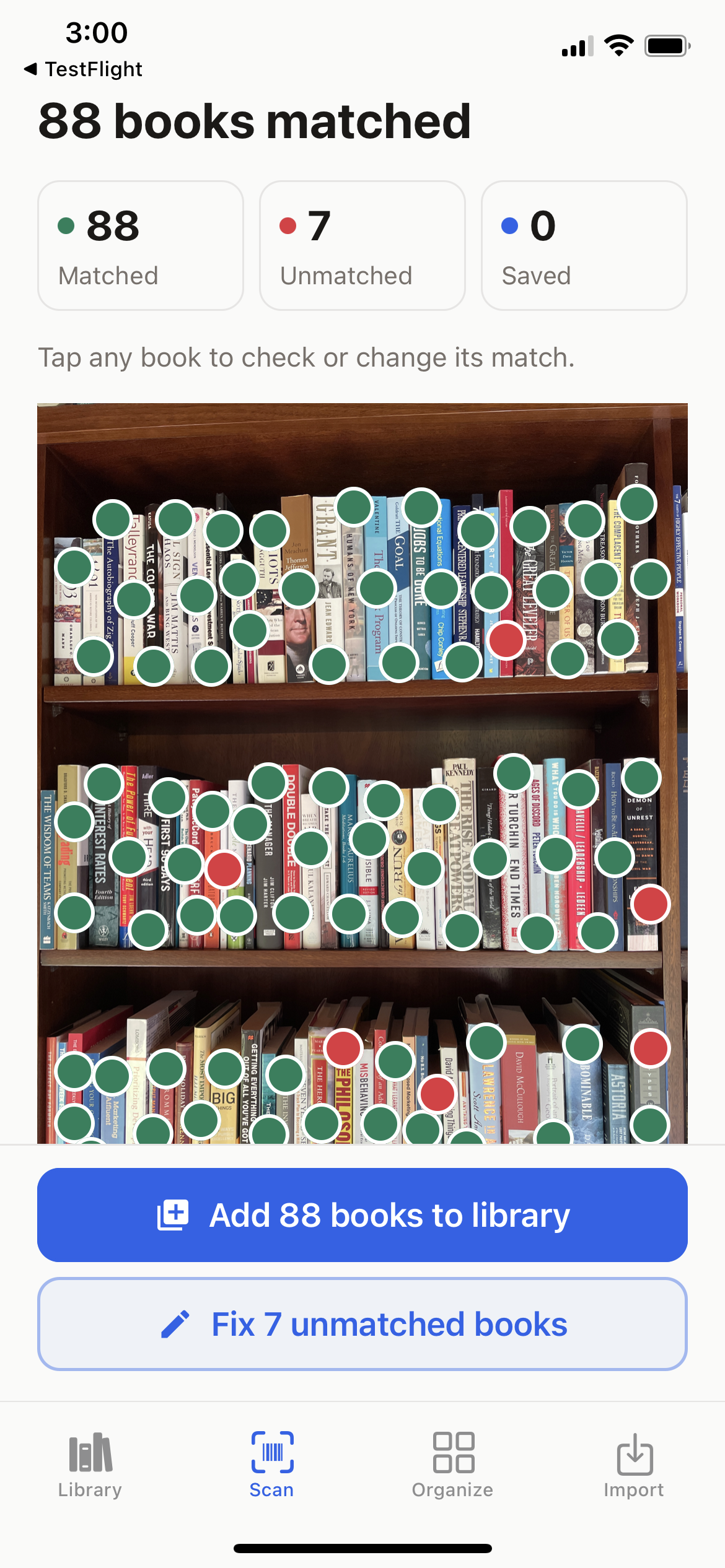
88 books matched.
Leave the books on the shelf. Take a clear photo, and Better Bookshelf suggests the titles and marks their positions. Add the matched books together, then tap the red dots to identify the rest.
Scan your shelf
Build your catalog without entering every title.
Search for a book
Find a title or author across your saved shelves.
See where it belongs
Open its marked position in your shelf photo. Update the photo when your books move.
This iPhone test scan returned 88 matches and 7 books needing help. Matches are title suggestions, not a verified accuracy score. Results vary with the books and photo quality. Shelf scanning is an upgrade feature.
How whole-shelf scanning works
Five steps from a bookcase to a searchable shelf. You stay in control at every one: nothing is added to your library, and no location is changed, until you confirm it.
1. Take one clear photo of a bookcase
Open Add books, choose Scan a shelf, and give the shelf a name like "Office · West bookcase". Take a photo with every spine visible, or choose one from your camera roll. A whole bookcase in one frame is fine; the app splits large photos into sections and reads each one.
2. AI identifies the spines and marks their positions
Each book gets a dot on the photo: green for a confident match, red for a spine that needs help. The app checks the books already in your library first, so a title you cataloged years ago is linked rather than duplicated. One real test scan of a packed bookcase came back with 88 matched and 7 needing help.
3. Add the matches together. Fix the rest.
Tap Add 88 books to library and they are cataloged with covers and details. Then tap each red dot to identify it by barcode, title search, manual entry, or by picking a book already in your library. If a spine was misread, tap it and change the match. Fixing matches never uses a scan credit.
4. Search for a book. See its place.
Later, search your shelves by title or author, or tap Find on shelf from any book. The saved photo opens with that spine highlighted and the rest dimmed, with a close-up of the spine and directions like "Immediately right of The Left Hand of Darkness". No internet needed.
5. Rearranged? Take a new photo.
Locations reflect your saved photo, so when books move you update the shelf with a new one. The app shows how many previous books it found again and which locations it will clear, and only then do you save the update. Books whose location clears stay in your library with all their history.
Find on shelf
Search a title. See exactly where it is.
Your shelves live in the Organize tab. Type a title or author and results appear as Title on Shelf name above the photos. Tap one, and the app opens that shelf in locate mode. Or start from the other side: every book in your library has a Find on shelf button, and if you own copies on more than one shelf you choose which to view.
The highlighted spine
Your saved shelf photo opens with the book you searched for highlighted and every other marker dimmed. Pinch to zoom up to 4×.
A close-up
Tap Show book close-up for a crop of that spine with an amber box around it, so you know exactly which one to pull.
Its neighbors
Directions like "Immediately left of Pachinko" or "Two books right of Circe" use the identified books beside it as landmarks.
Finding books works offline. Locations reflect your last saved shelf photo; update the photo when books move.
Built for the library you already have
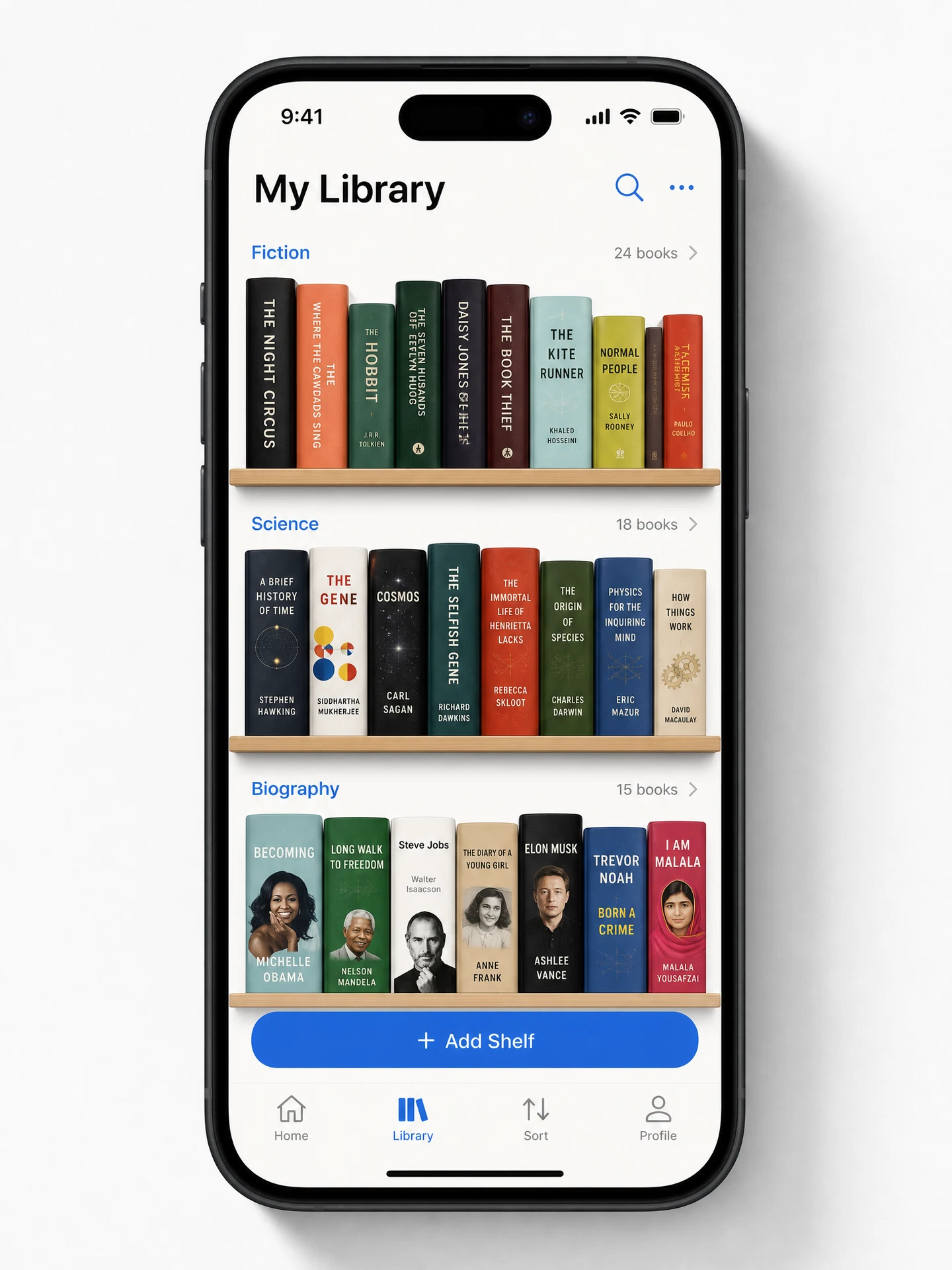
Barcode scanning is still there for single books. Shelf scanning is for the hundreds of books already standing on shelves, and for finding them again afterwards.
"I know I own it. Where is it?"
The book you want is somewhere across three bookcases and two rooms. Type the title, tap the result, and the app shows you the shelf photo with that spine highlighted.
Cataloging a library that's already shelved
Barcode scanning means pulling every book off the shelf. A shelf photo catalogs the books where they stand, so a bookcase takes one photo and a few minutes of fixing red dots.
Pre-barcode and library-bound books
Older hardcovers and rebound editions have no barcode to scan. The AI reads the spine text instead, and anything it can't read you identify by title or manual entry.
A collection that keeps moving
Shelves get rearranged, books get lent out, boxes go to the attic. Name each shelf, update its photo when it changes, and search always shows the last known place.
What shelf scanning costs
Your first 50 books are free using barcode scanning and title search. The one-time Unlimited upgrade (US$29.99) removes the library limit and includes 6 whole-shelf AI scans. Need more? Packs of 6 scans cost US$10 and never expire. There is no subscription.
One scan =
one successfully processed photo, including a new photo used to update a shelf
Always free
fixing matches, adding identified books, searching shelves, viewing locations
Never charged
failed scans and scans that find no books
Bookshelf scanning questions, answered
Is there an app that can scan an entire bookshelf at once?
Yes. Better Bookshelf photographs a whole bookcase in one shot and uses AI to identify the books from their spines. Each identified book is marked on the photo, and you add the matched titles to your library together instead of scanning barcodes one at a time. Books the AI is unsure about are marked in red so you can identify them by barcode, title search, or by choosing a book already in your library. Whole-shelf scanning is included with the one-time Unlimited upgrade (6 scans) and requires version 1.8.0 or later.
How do I find where a specific book is on my shelves?
Search your saved shelves by title or author, or open any book in your library and tap Find on shelf. Better Bookshelf opens the shelf photo with that book's spine highlighted, shows a close-up of the spine, and gives directions relative to the books beside it, such as "Two books left of Dune". If you have copies on more than one shelf, you pick which one to view. Finding books works offline because the photo and positions are stored on your phone.
How accurate is AI bookshelf scanning?
It depends on the photo and the books. Clear, well-lit photos with readable spines work best; thin spines, glare, and unusual fonts produce more books that need help. The app never adds a book silently: confident matches are shown for you to add together, uncertain ones are marked in red for you to identify or correct, and you can change any match. One real test scan of a full bookcase returned 88 matched and 7 needing help, which is a demonstrated result, not a guarantee.
What happens when I move my books?
Shelf locations reflect the photo you saved, so they don't change on their own. When you rearrange a shelf, choose Update shelf photo and take a new one. Before anything is saved, the app tells you how many previously placed books it found again and which locations it will clear. Books that lose a location stay in your library with their ratings, notes, and reading history intact.
How many shelf scans do I get, and what does a scan cost?
The one-time Unlimited upgrade (US$29.99) includes 6 whole-shelf AI scans, granted once. Additional packs of 6 scans cost US$10, and purchased scans never expire. One successfully processed photo uses one scan, including a new photo used to update a shelf. Fixing matches, adding identified books, searching shelves, and viewing locations never use a scan. Failed scans are not charged. Your local store price is shown before you buy.
Does my shelf photo get uploaded anywhere?
Only when you choose to scan it. The photo is sent through Better Bookshelf's server to OpenAI to identify the books, with camera metadata removed and without your name, email, or device identifiers attached. Scan results, meaning the detected titles and positions, are kept on our server for up to 30 days so an interrupted scan can be recovered. The saved photo and your library stay on your device unless you back them up to your own Google Drive. The app asks for confirmation before each upload.
Do I need an account or internet to use shelf scanning?
There is no sign-up, email, or Google sign-in required. AI scanning itself needs an internet connection because the photo is processed by OpenAI. Everything after the scan, including browsing your library, searching shelves, and viewing a highlighted book, works offline.
Last updated: September 2026. Describes Better Bookshelf version 1.8.0. See how it stacks up in the feature comparison, or read the book scanner guide for barcode and import workflows.
Your whole shelf. One photo.
Start free with 50 books. Upgrade once for an unlimited library and 6 whole-shelf AI scans.
Shelf scanning requires Better Bookshelf 1.8.0 or later.